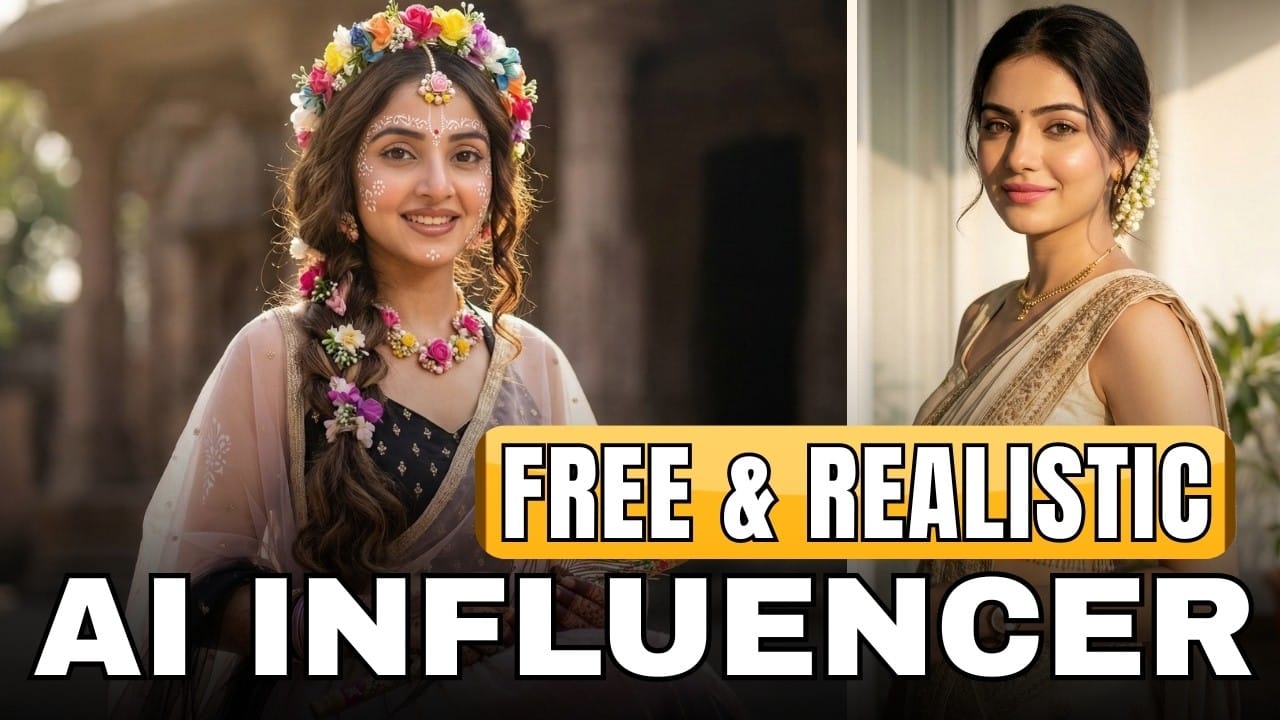
AI technology is transforming how creators produce videos. Today, even beginners can create high-quality cinematic videos using just a single image and the right AI tools. Many content creators are already using this technique to produce viral devotional videos, storytelling reels, and cinematic social media content.
If you want to learn how it works, watch the full tutorial here:
👉 https://www.youtube.com/watch?v=hzDN4FyE-Qo
In this guide, we’ll explain how you can generate cinematic AI videos using two powerful free tools and simple prompts.
Step 1: Create Motion Prompts for Your Image
The process starts with creating a motion prompt that tells the AI how your image should move.
You can easily generate these prompts using ChatGPT.
For example, upload an image and ask the AI:
“Generate a cinematic motion prompt where the camera slowly zooms in while glowing energy rotates in the scene.”
The AI will produce a detailed prompt that can later be used inside video generation tools.
By creating prompts for each scene, you can turn static images into dynamic cinematic clips.
Tool 1: Grok AI – Perfect for Animating Images

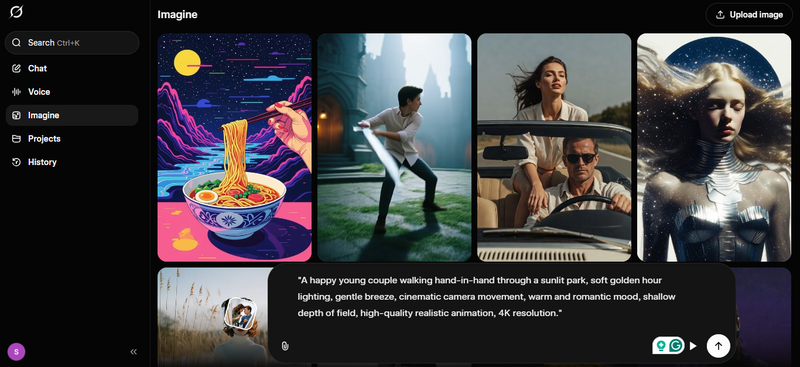
Grok AI allows users to animate images and turn them into short cinematic videos.
How to Use Grok AI
- Open the Grok AI interface
- Click on Imagine
- Select Animate Image
- Upload your image
- Paste your cinematic prompt
- Click Generate
Within seconds, the AI will produce a 6-second animated video with cinematic movement.
Advantages
⭐ Easy to use
⭐ Smooth cinematic animation
⭐ Great for storytelling videos
Limitations
- Only one image can be animated at a time
- Video resolution is around 480p
- No start-frame to end-frame transition
Despite these limitations, the results are surprisingly cinematic.
Tool 2: Google Veo – Advanced AI Video Creation
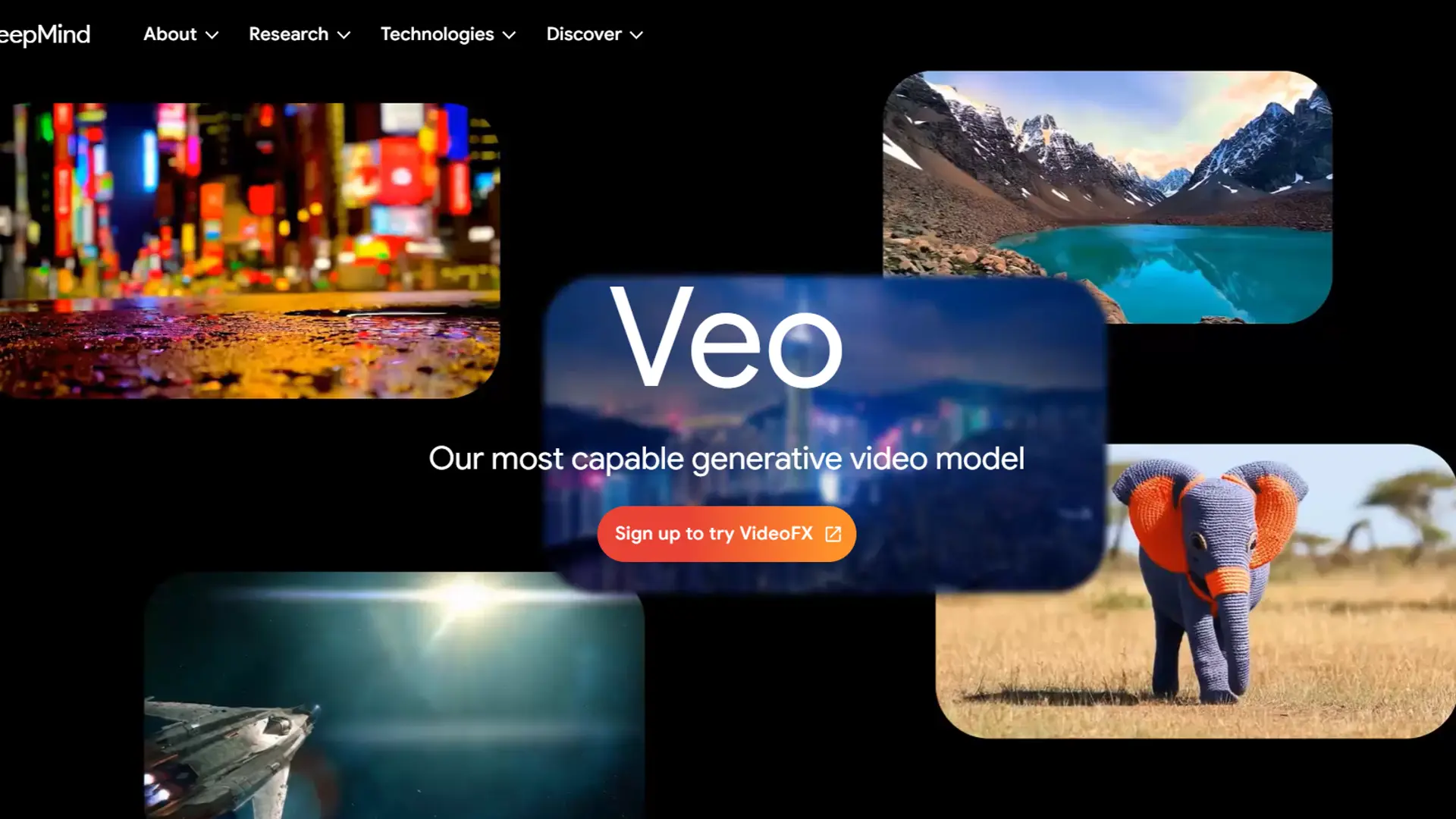
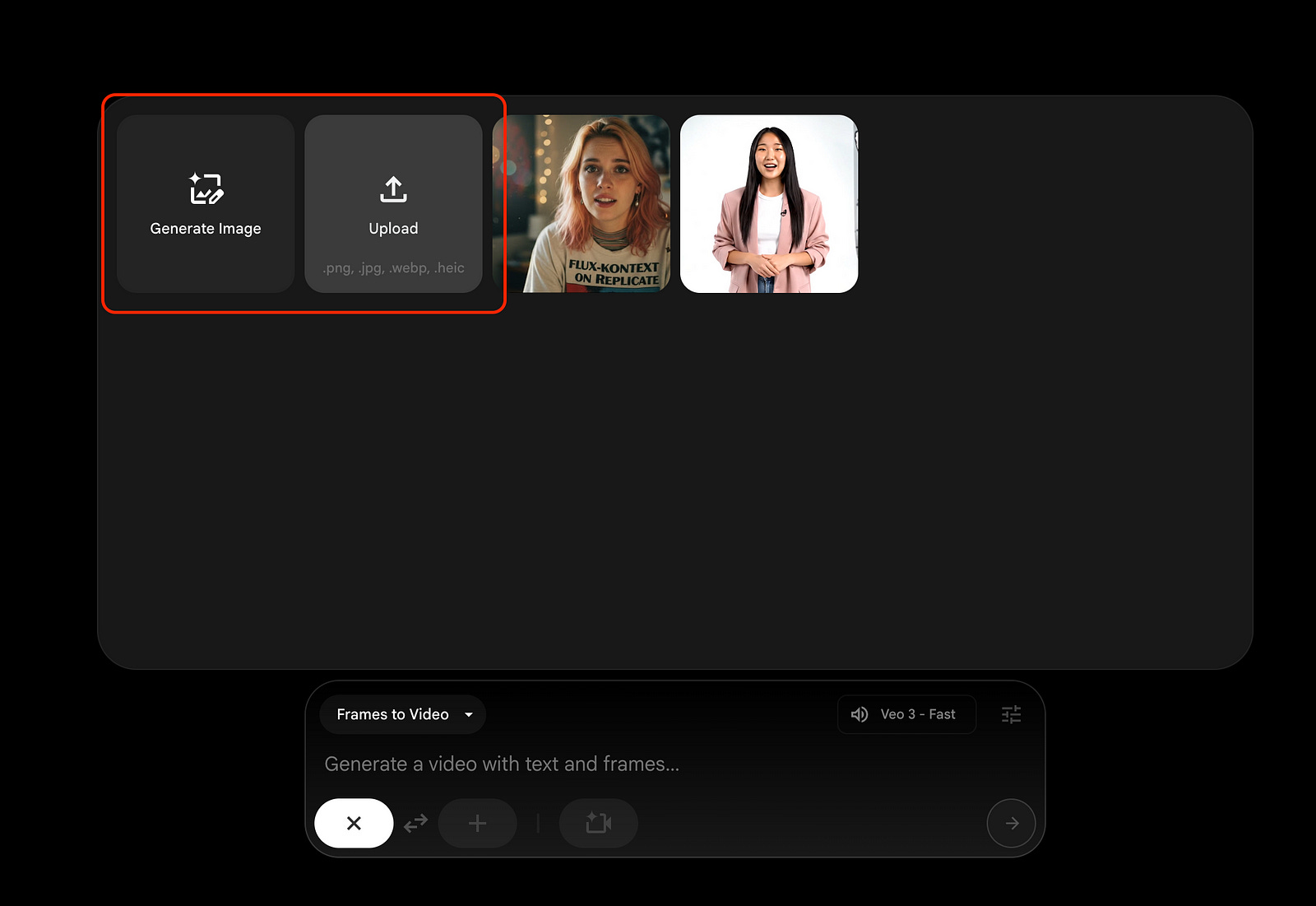
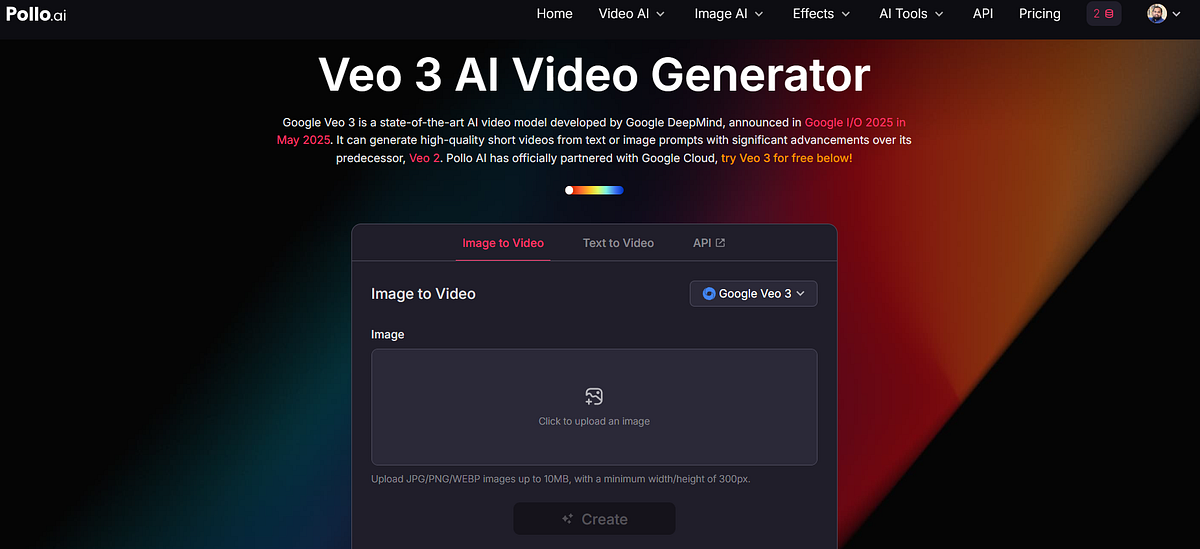
Developed by Google, Google Veo is another powerful AI video generator.
The biggest advantage of Veo is that it supports start frame to end frame transitions.
How It Works
- Upload the starting image
- Upload the ending image
- Add your motion prompt
- Generate the video
The AI will automatically create a smooth cinematic transition between the frames.
This technique is extremely useful for storytelling videos and devotional content.
Things to Keep in Mind
Although Google Veo is powerful, it sometimes produces different results even with the same prompt.
Some videos may follow the prompt perfectly, while others might not fully match the intended motion.
When generating videos with human characters, you might notice:
- Slightly exaggerated facial expressions
- Minor pronunciation issues in dialogue
- Subtle signs that reveal the video is AI-generated
Final Tip for Creators
The best strategy is to combine both tools.
Use Grok AI for image animation, and Google Veo for cinematic scene transitions.
This combination allows you to create professional-looking AI videos for free.
Watch the full tutorial here to see the complete process:
👉 https://www.youtube.com/watch?v=hzDN4FyE-Qo