Talking AI avatars are quickly becoming popular among YouTubers, Instagram creators, educators, marketers, and faceless content creators. These digital characters can speak your dialogue while maintaining realistic lip synchronization, facial expressions, hand gestures, and body movements.
The best part is that you don’t necessarily need expensive animation software to create one. With tools such as Google Flow and DreamFace AI, you can build an animated avatar and turn it into a talking character using a simple workflow.
Here is a complete step-by-step guide.
What Is a Talking AI Avatar?
A talking AI avatar is a digitally generated character that can speak using your recorded audio or AI-generated voice.
Unlike a basic talking-photo effect where only the mouth moves, a more advanced AI avatar can include:
- Realistic lip synchronization
- Hand gestures
- Head movements
- Natural blinking
- Facial expressions
- Subtle body movements
These elements make the character look much more engaging on camera.
Step 1: Choose Your Avatar Style
Before generating anything, decide what type of avatar you want.
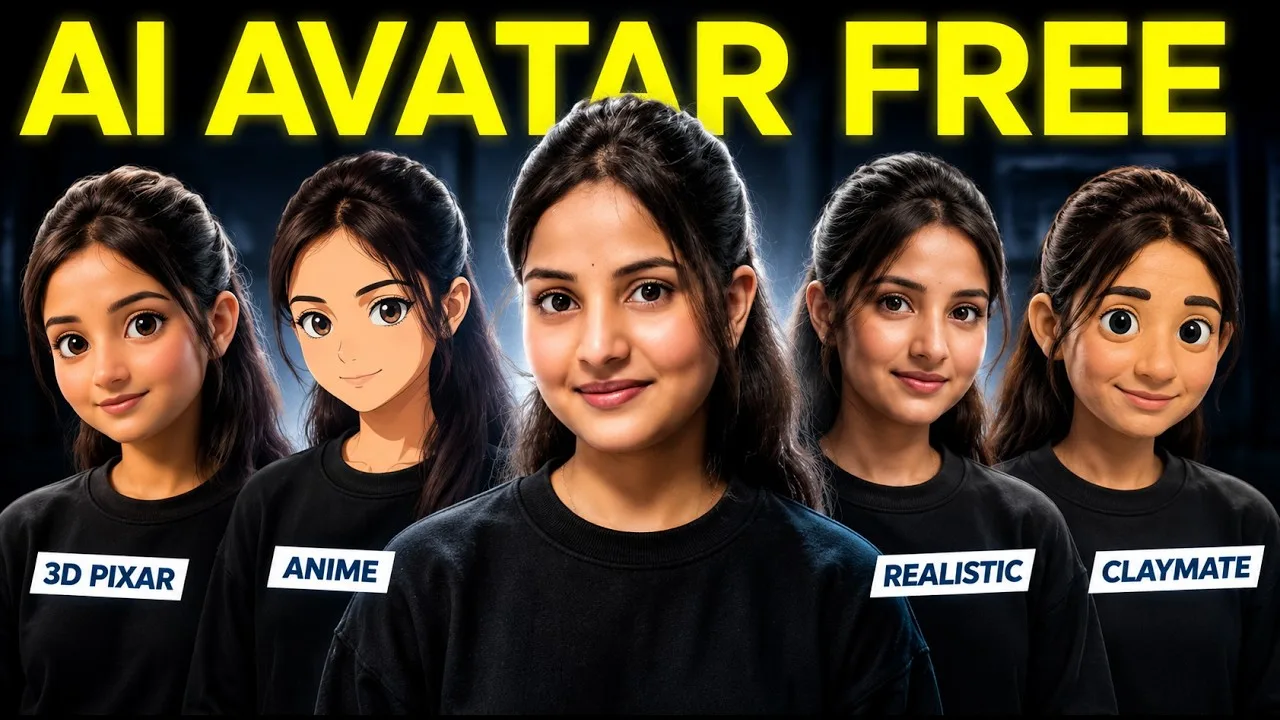
You can create a realistic digital version of yourself or transform your appearance into a stylized character such as a 3D cartoon or anime-inspired avatar.
Start with a clear photograph of yourself.
You can also take a screenshot from an existing video. Choose a frame where your face is clearly visible and there is minimal motion blur.
Step 2: Generate Your AI Character
Upload your reference image to an AI image-generation tool such as Google Flow.
Give the AI a simple instruction describing the transformation you want.
For example:
“Convert this image into a high-quality 3D animated character while maintaining the person’s facial identity.”
If you prefer another appearance, replace the style description with your desired look.
You could create an anime-inspired character, cinematic realistic avatar, clay-style character, comic character, or another visual style.
Select the required aspect ratio and generate your image.
You can also use other AI image-generation tools if they support reference-image transformations.
Step 3: Animate Your Avatar
Now turn the generated character into a short video.
At this stage, don’t focus on speech. The purpose is to give the character realistic body language.
Upload your avatar image to an image-to-video generator and instruct the character to perform subtle presenter-style movements.
The avatar can:
Move its hands naturally while explaining something, make small head movements, blink naturally, maintain eye contact with the camera, and show subtle breathing and body motion.
Avoid exaggerated gestures.
A short clip of around 10 seconds can work particularly well because it is easier to maintain character consistency.
Step 4: Download Your Animated Character
Preview the generated video before continuing.
Check that the face remains consistent and that there are no distorted hands, unusual facial movements, sudden background changes, or unnecessary mouth movements.
Remember, the character doesn’t need to speak yet.
You mainly need a clean animation containing natural gestures and body movement.
Download the final clip once you’re satisfied.
Step 5: Create the Talking Avatar
Now open DreamFace AI and access its avatar-generation feature.
Upload the animated video you created.
Using a video instead of only a static image can make the final result more engaging because the original animation already contains body and hand movements.
Next, choose how you want your avatar to speak.
You can enter text and select an AI voice, or upload your own recorded audio.
Uploading your own voice can be useful if you want to maintain your natural pronunciation, emotion, and speaking style.
Step 6: Generate Perfect Lip Sync
Upload your audio and start the avatar-generation process.
The AI analyzes your speech and synchronizes the character’s mouth movements with the audio.
Once processing is complete, preview the video.
Check whether the lips match the spoken words naturally.
Also make sure the original hand gestures and body movements remain smooth.
Important Trick for Better Results
Keep the duration of your source video and audio approximately the same.
For example, if your animated character video is 10 seconds long, try using around 10 seconds of dialogue.
Using significantly longer audio with a short source animation can sometimes make movements repetitive or unnatural.
For longer content, create several short avatar clips and combine them during editing.
Improve Your AI Avatar Video Quality
If your generated video appears blurry or compressed, use the platform’s video-enhancement feature when available.
Starting with a high-resolution reference image also helps.
For the best results, keep the character well-lit, maintain a relatively stable camera angle, avoid extremely fast movements, and use clean audio without excessive background noise.
Where Can You Use Talking AI Avatars?
Talking AI avatars can be useful for many types of content.
You can use them for YouTube videos, Instagram Reels, YouTube Shorts, educational videos, product explainers, digital marketing videos, storytelling, faceless channels, AI tutorials, and social-media advertisements.
They can be especially useful for creators who don’t want to record themselves every time they need to produce a video.
Can You Really Create AI Avatars for Free?
Several AI platforms offer free credits, trials, or limited free generations.
However, these limits can change frequently. Always check the latest pricing, generation limits, video duration, watermark policies, and commercial-use conditions before relying on a particular service.
Final Words
Creating a talking AI avatar has become surprisingly simple.
The complete workflow is:
Reference Photo → AI Character → Image-to-Video Animation → Upload Voice → Lip Sync → Enhance → Edit
The key is to animate your character before adding the dialogue.
This allows you to combine realistic body movements and hand gestures with synchronized speech, producing a much more engaging AI presenter than a basic talking-photo animation.
With the right reference image, clean audio, and controlled character movements, you can create impressive talking AI avatar videos without learning traditional animation.