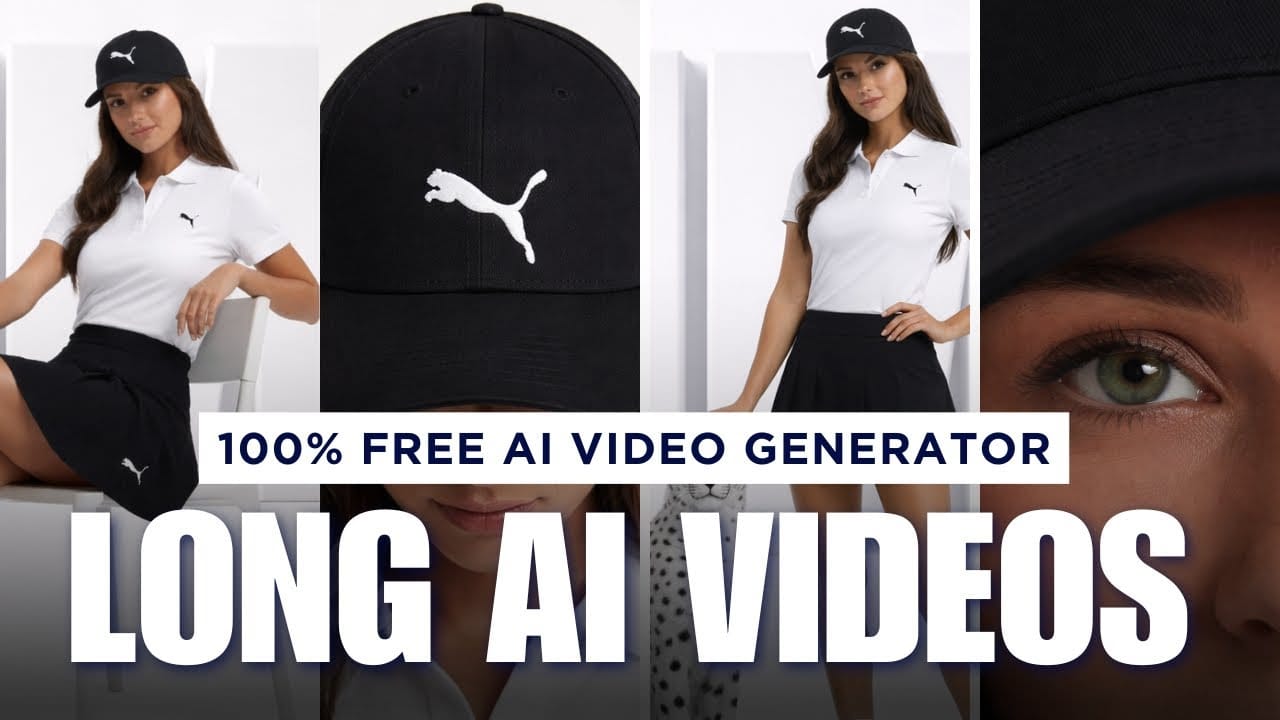
Artificial Intelligence has completely transformed the way we create videos. Earlier, generating AI videos was limited to short clips of 5–10 seconds. But now, thanks to advanced tools like Google Flow and ChatGPT, you can create long AI videos for free without any paid subscription. Whether you are a YouTuber, digital marketer, content creator, or business owner, this guide will help you learn how to generate long AI videos step by step using free tools.
In this blog, you will learn how to generate images, convert them into videos, extend scenes, and combine multiple clips into a continuous long AI video.
Why Long AI Videos Are Important
Short AI videos are useful, but long AI videos provide more value for storytelling, product promotion, tutorials, and social media content. Long videos allow you to:
- Create engaging YouTube videos
- Build storytelling content
- Promote products professionally
- Create educational or tutorial videos
- Save time and production cost
The best part is that you can do all of this without expensive cameras, actors, or editing software.
Step 1: Generate High-Quality Images Using ChatGPT
Before creating a video, you need a base image. ChatGPT can help you generate or edit images easily without complex prompt writing.
How to do it:
- Open ChatGPT.
- Upload a reference image.
- Upload your original product image.
- Write a simple instruction like:
- “Replace the product in the first image setup with the product from the second uploaded image. Keep everything else the same.”
ChatGPT will generate a new image that matches the original setup while replacing only the product. The lighting, angle, and environment remain consistent.
You can also enhance image quality, edit elements, and download the final image.
This step is very useful for product videos, ads, and brand content.
Step 2: Open Google Flow and Select Image-to-Video
Now that your image is ready, the next step is converting it into a video.
Follow these steps:
- Open Google Flow.
- Choose the “Frames to Video” or “Image to Video” option.
- Upload your generated image.
- Write a simple instruction, for example:
- “Girl walking and speaking while looking at the camera.”
Click submit, and the AI will generate a video clip from your image.
Initially, the generated video will be around 5–8 seconds long.
Step 3: Extend the Video to Make It Longer
This is the most powerful feature that allows you to create long AI videos.
After generating the first video clip:
- Click on “Add to Scene”
- Click the plus (+) icon
- Select “Extend”
Now write an instruction describing what happens next, for example:
- “Girl returns back, looks at camera, and speaks.”
Click generate.
The AI will continue the previous scene and create a new clip that connects naturally.
By repeating this process, you can extend the video continuously and make it longer.
For example:
- First clip: 8 seconds
- Second clip: 7 seconds
- Third clip: 10 seconds
Total video length becomes 25 seconds or more.
You can keep extending until you achieve your desired video length.
Step 4: Use the “Jump To” Feature for Scene Control
The “Jump To” feature allows you to create smooth transitions between two different scenes.
This is useful for storytelling and structured videos.
How it works:
- Generate a first frame image.
- Generate a last frame image.
- Use ChatGPT to create a motion prompt describing the transition.
- Upload both images into Google Flow.
- Paste the motion prompt.
- Click generate.
The AI creates a smooth transition between the first and last frames.
This gives you more control over storytelling and scene progression.
Step 5: Combine Multiple Scenes into One Continuous Video
By combining Extend and Jump To features, you can create a complete long video.
For example:
- Scene 1: Character introduction
- Scene 2: Character speaking
- Scene 3: Camera movement
- Scene 4: Product showcase
- Scene 5: Ending scene
Each scene connects smoothly and creates a continuous video.
This method is perfect for:
- YouTube videos
- AI storytelling videos
- Product advertisements
- Instagram reels
- Marketing content
Step 6: Export and Download Your Long AI Video
Once your video is ready:
- Click Export
- Wait for processing
- Download your video
The video will be ready for publishing on YouTube, Instagram, or any platform.
No paid subscription is required.
Google Flow provides free video generation credits every month.
Benefits of Using Free AI Video Generators
Here are some major benefits:
1. Completely Free
You can generate long videos without paying for expensive tools.
2. No Editing Skills Required
AI handles animation, motion, and scene generation.
3. Fast Video Creation
Videos can be generated within minutes.
4. Perfect for Content Creators
Great for YouTube creators, marketers, and businesses.
5. Professional Quality Output
AI creates realistic and cinematic videos.
Best Use Cases for Long AI Videos
You can use AI video generators for:
- YouTube content creation
- Product marketing videos
- Educational videos
- Storytelling videos
- Social media content
- Brand promotion
This is especially useful for creators like you running AI tutorial channels, marketing agencies, or product brands.
Pro Tips for Better AI Videos
- Use high-quality images
- Write clear and simple instructions
- Extend scenes step by step
- Use Jump To for transitions
- Plan your video scenes before generating
Better planning gives better video results.
Conclusion
Creating long AI videos is now easier than ever, and the best part is that you can do it completely free. By using ChatGPT for image generation and Google Flow for video creation, you can build professional, long-form AI videos without expensive tools or technical skills.
The Extend feature allows you to continue scenes, while the Jump To feature helps create smooth transitions between different frames. By combining these features, you can generate unlimited long AI videos for YouTube, marketing, and storytelling.
If you are a content creator, digital marketer, or entrepreneur, this technology can save you time, reduce production costs, and help you scale your content faster.